We spread joy!
GPS tracking of ski trails - Simple and free
Easy & Free
Click to enlarge
Routes
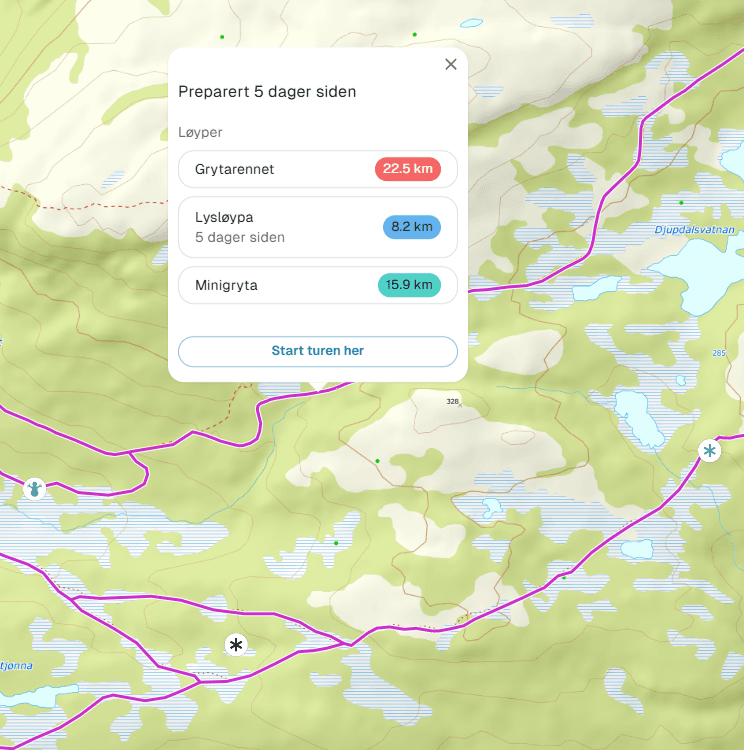
When clicking on the trail, you'll see which routes are included. Click on the name and the map zooms to the selected route.
Click to enlarge
Trip Planner
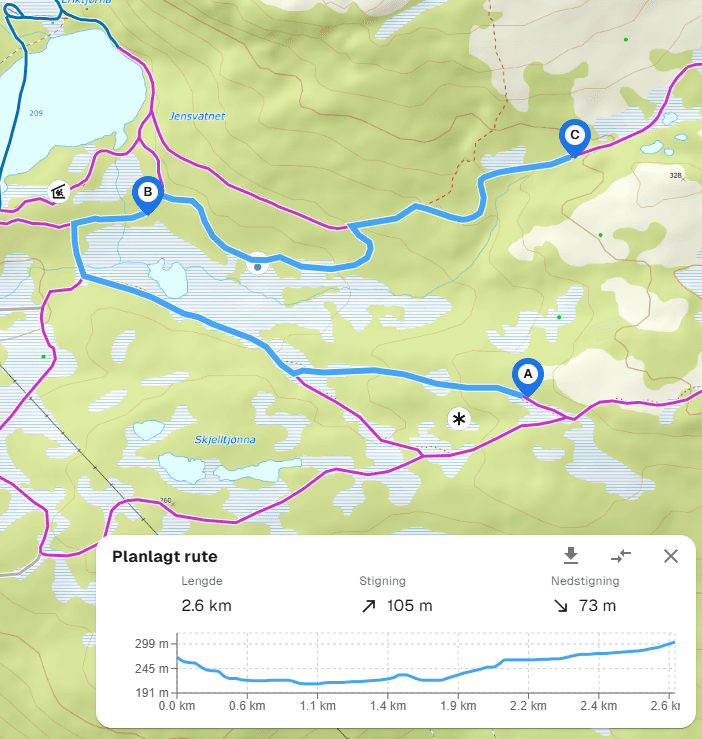
Loipen.net's trip planner is as brilliant as it is easy to use. Sit back and see the distance and elevation profile of your desired trip.
Click to enlarge
Over 700 active GPS units
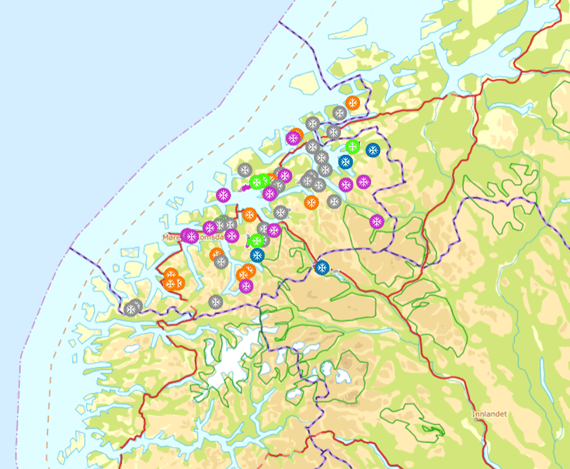
Over 15 years, we've built up the market's best and most cost-effective tracking system to show groomed trails across all of Norway and Sweden!
Inclusive
High-quality GPS solution
- Skiers get a free high-quality map solution showing groomed trails in real-time. This is an inclusive solution - everyone gets access!
- Top solution that works equally well on PC as on mobile.
- We cover all of Norway and Sweden - largest in Scandinavia.
- The market's most affordable and best solution for everyone!
Click to enlarge
Download your own GPX file
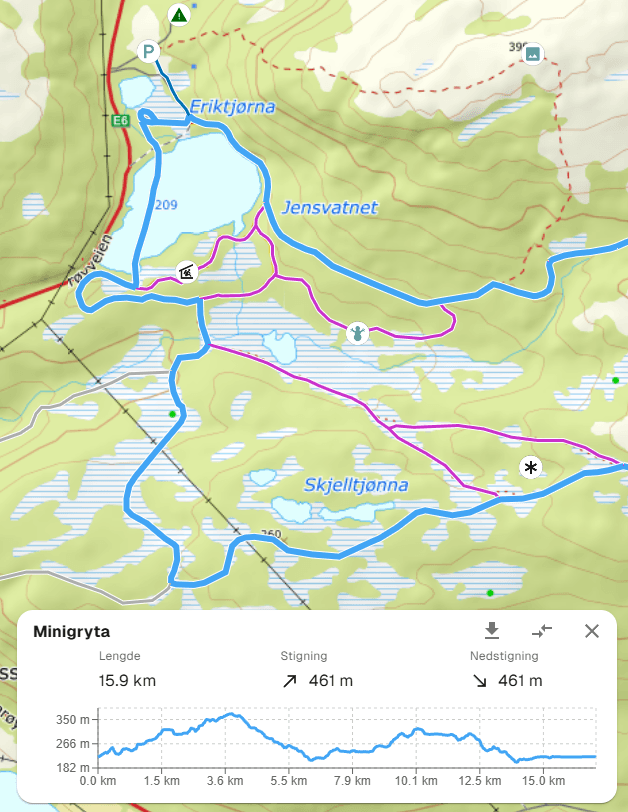
For importing to your mobile or Strava trip. The solution is of course included and free for users, like everything else at Loipen.net.
Click to enlarge
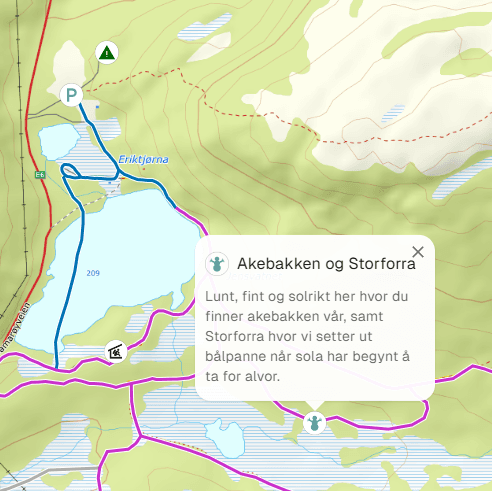
POI
Find 'Points of Interest' - whether viewpoints or shelters.
Click to enlarge
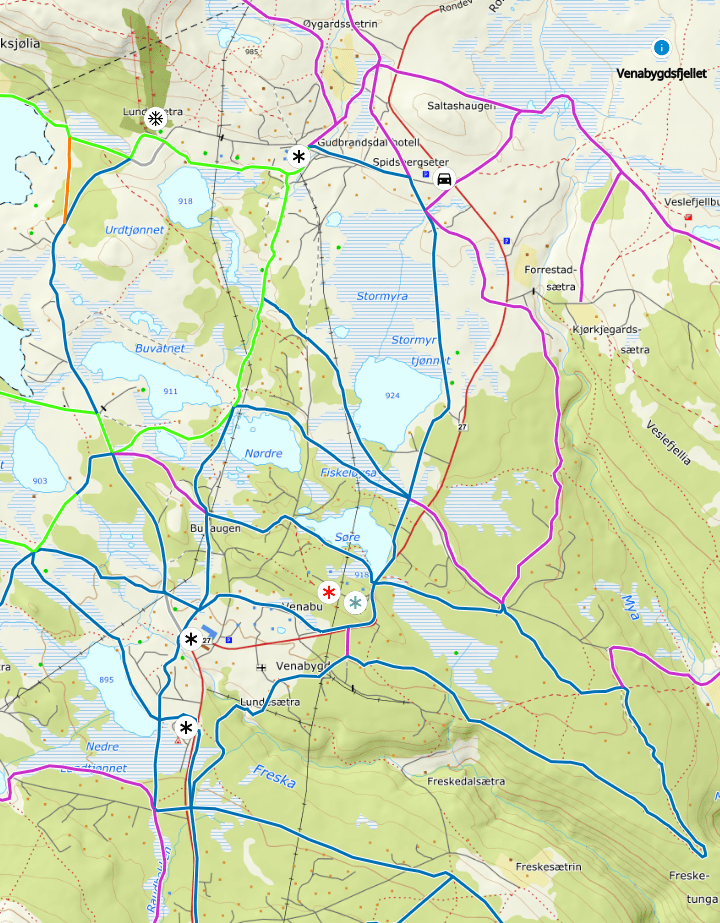
Simple and clear map
It doesn't get better for your users.
Admin pages
Administrator solution
The administrator solution for Loipen.net gives you the ability to add information to help users find points of interest, name trails, write messages, or just keep the service active.
You can close trails if necessary, perhaps due to poor ice conditions or logging operations.
We update the trail geometry, and if you change your grooming pattern, let us know and we'll update the map.
Four menus for admin
For the admin user, there are four menus to choose from. These are:
- Information: Here you enter information about the destination.
- Trails: Here you can manually update the trail, name the trail, set it as inactive.
- POI, Point of interest: Here you can manually update the trail, name the trail, set it as inactive.
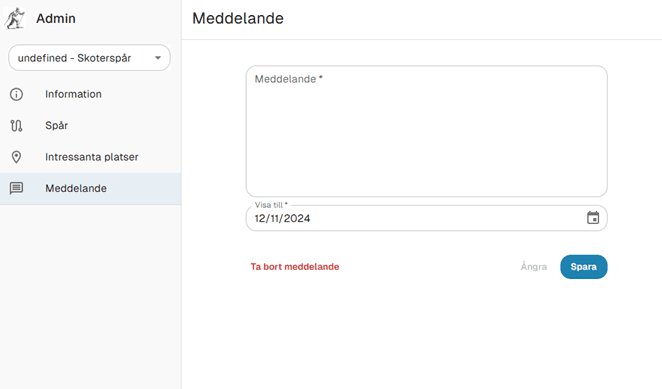
- Messages: Here you have the option to post messages to users. These are time-dependent messages, so a message that should only be valid for a few days will disappear on the date you specify.
Information
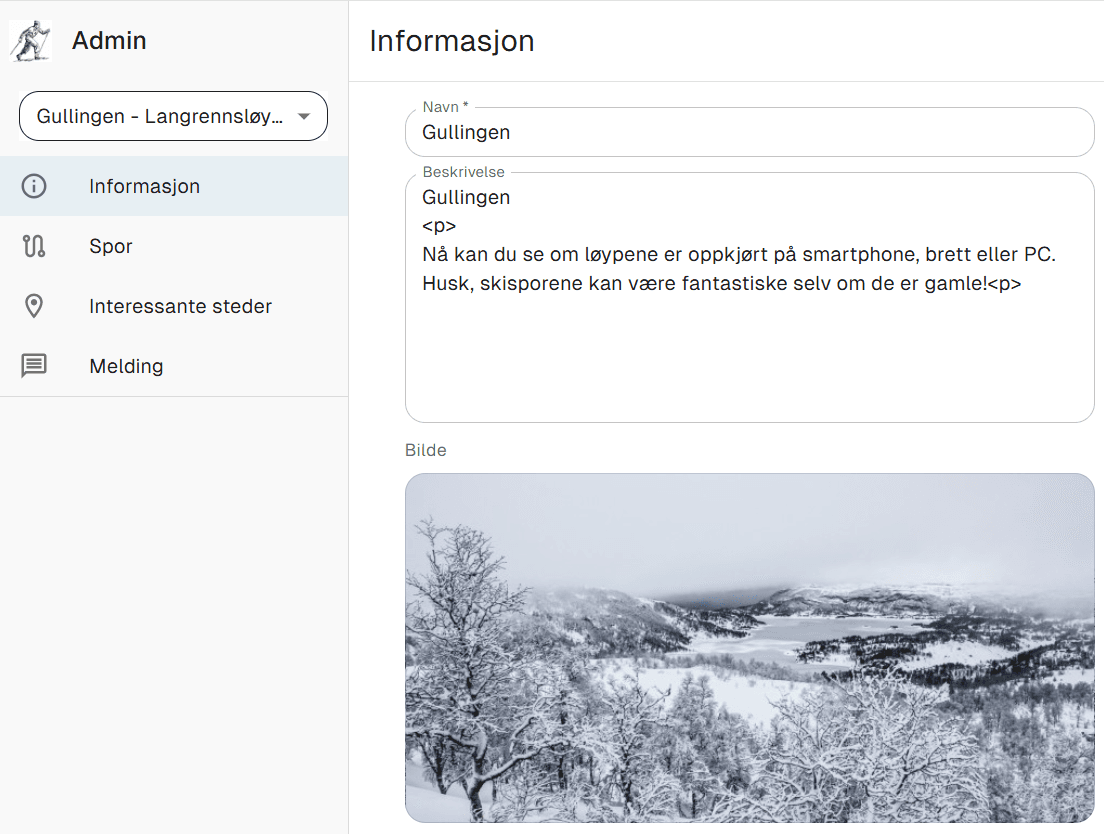
An admin user can be administrator for one or more areas. At the top left in the image to the right, the active area appears. For most, they will only be able to update one area.
Here you enter the name of the destination. This is the name shown in the solution, so this text should not be changed. That is, enter the text that the place is known by.
In addition, you can enter information about the place itself, or the association. Here you can enter anything. HTML code can also be used, with links, and advertising for sponsors.
Finally, you can upload an image showing the place. It might be smart to use images that don't have recognizable people in them.
Click to enlarge
Trails

Click to enlarge
1.
When selecting trails, you see the entire trail network available to you.
Click to enlarge
2.
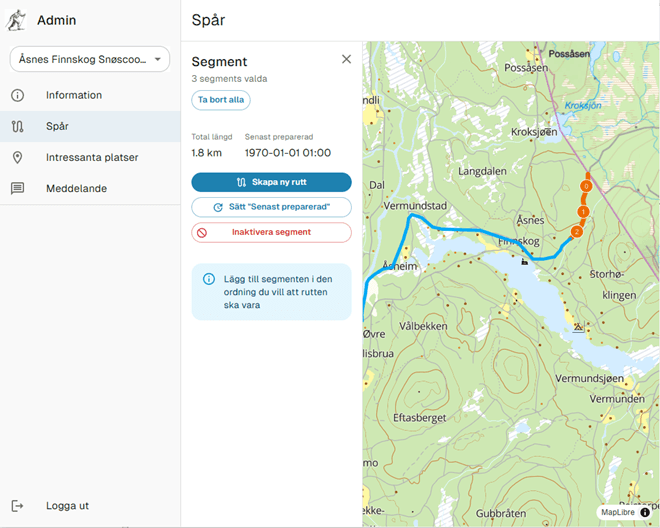
We want to name a trail. Then you select the starting point of the trail and click on the first segment. The entire trail network consists of line segments. The length of these varies. Then you click on the next one. You will then create a line with the numbers 0-1-2-3-4 etc. So the trail goes from starting point 0 to e.g. 4 (i.e. a short trail).
Click to enlarge
3.
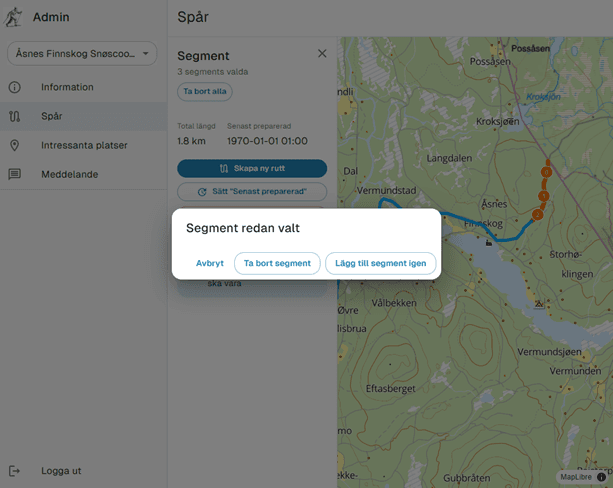
If the trail goes back and forth the same way, you have the option to add the same segments again. See menu to the right. Then you select 'add segment again'. Or you can 'remove segment' or just cancel the operation.
Click to enlarge
4.
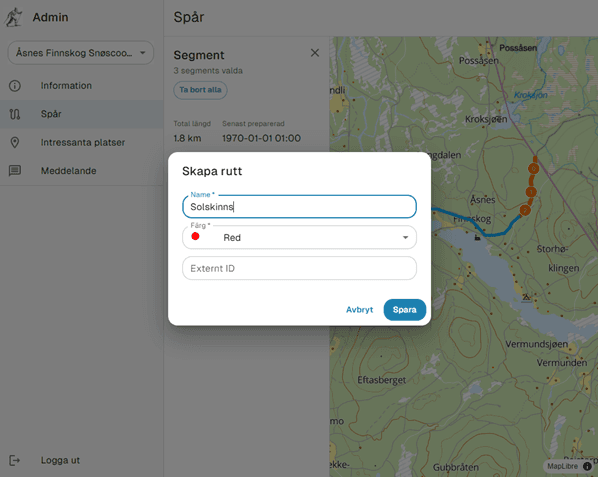
Once you've added the entire trail, you give it a name and specify what color it should be. Then it will appear in the overview with the name and color you've given. In the overview, all trails are sorted by name so you can override this by giving them a number first.
Click to enlarge
5.
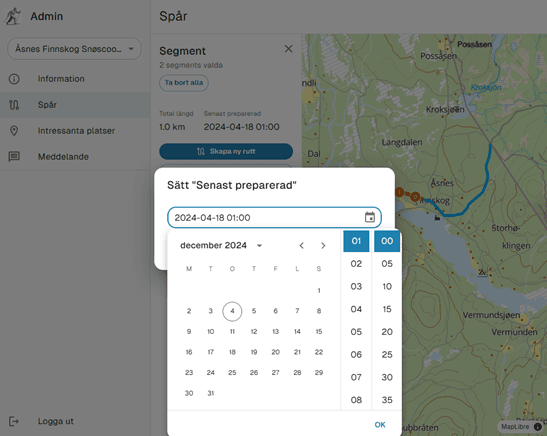
You can select a route/trail under the trails menu and set it as inactive, typically in spring or after the season ends, or you can set the date and time when it was groomed if it was done without GPS. And an inactive one can be set to active again.
Click to enlarge
6.
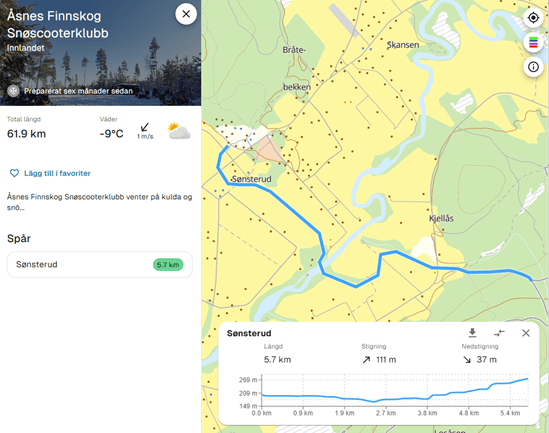
When you've named a trail, it will appear in the main menu for the destination. Click on it and the map will zoom in to it. You also get an overview of the elevation profile and how long the trail is. In the graph, you have the option to change direction, i.e. instead of going from A to B, you can change direction so you go from B to A. In addition, you can download the trail as a GPX file.
POI / Messages
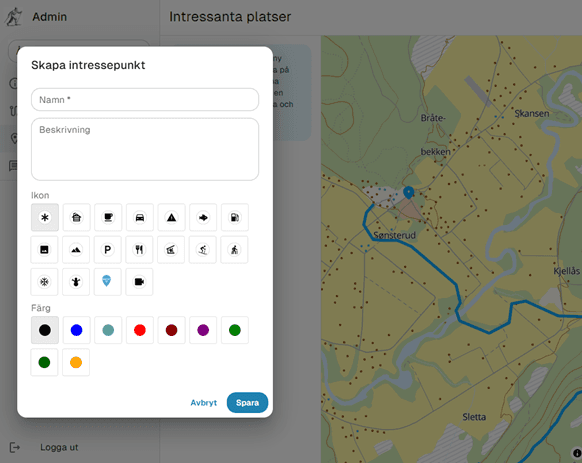
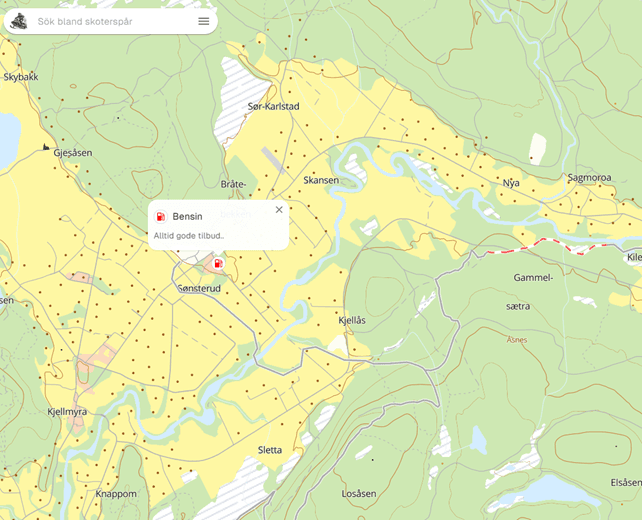
For the Points of Interest (POI) menu, you can add different icons to places that are relevant for the activity you're doing. Maybe it's a shelter or 'wind shelter' you want to show. To add an icon, click on the map where the shelter or parking area is located. You can add additional information. If you add information that needs regular updating, well then it should be updated regularly :). In the map, an icon will appear where you placed it and clicking on it will show the information.
Sometimes you want to inform users about an activity or just give a message. Then you have the option to post a time-dependent message. This could be a message like: 'During Easter, all trails will be groomed'. Then you enter the date when Easter ends, and the message disappears automatically! Or a message posted on a Wednesday could say, 'For the weekend'. Then you enter the date for the following Monday.
Click to enlarge
Click to enlarge
Click to enlarge
For users
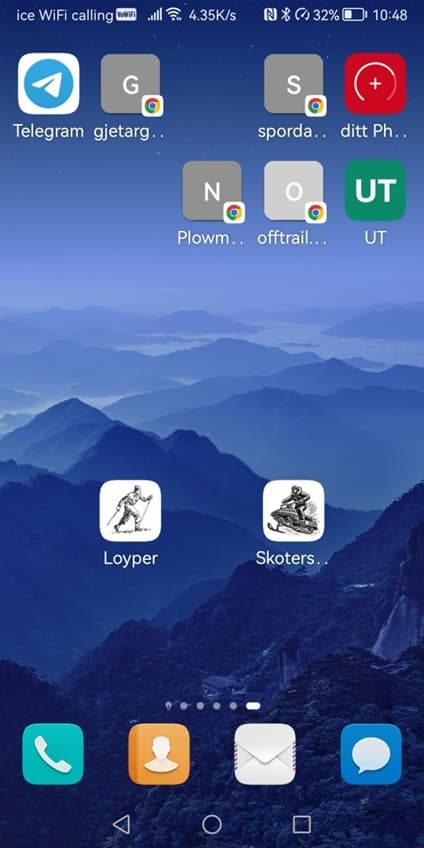
For normal use, go to the web address Loipen.net. It's always smart to bookmark it, or add it as an icon on your desktop.
On mobile, save it as a shortcut. Then you get an icon to click on. And voila, you're in the solution.
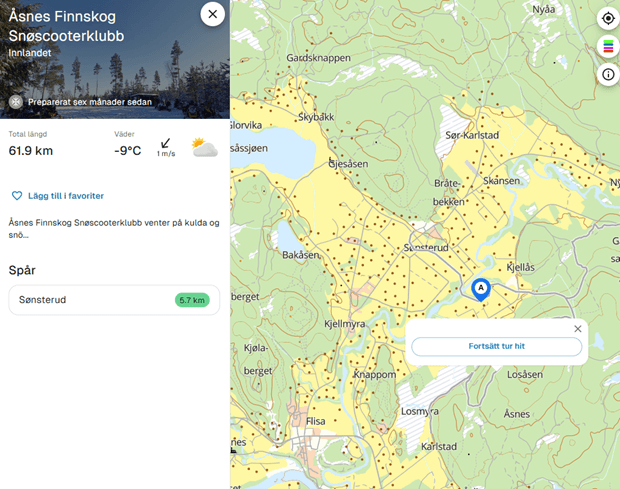
In the main menu, several elements are shown. The number of kilometers of trails, weather forecast for the area. The temperature should be taken with a grain of salt, as it's the center point of the trail network that determines the temperature.
You can add the place as a favorite. What does that mean? Then the solution will zoom in to this area. If you add two places as favorites, the solution will zoom in to both places. Create a 'bounding box' around both places. Or you click on the trail, set the starting point and select the next stop. Then you get the distance, elevation profile etc.
Click to enlarge
Click to enlarge
Advanced
This is information for those who want to embed the map on their own website.
Each destination URL has this format.
https://www.loyper.net/location/floyenTJENESTE/LOCATION/DESTINASJONIf you replace 'location' with 'embed':
https://www.loyper.net/embed/floyenThen only the destination 'floyen' is shown. If you want to show only your trails/ routes, then you should use this.
You can also create a link to your own route/trail.
SERVICE/EMBED/DESTINASJON/ROUTE-TRAILhttps://www.loyper.net/embed/ulvsvaagskaret/GrytarennetThen the route will be highlighted and you'll see the elevation profile.
You can show multiple destinations.
https://www.loyper.net/embed/Fri_MoldeThis shows all that are part of something called Stikkut in Møre og Romsdal in Norway. Let us know and we'll 'group' areas for you.
Then the route will be highlighted and you'll see the elevation profile.
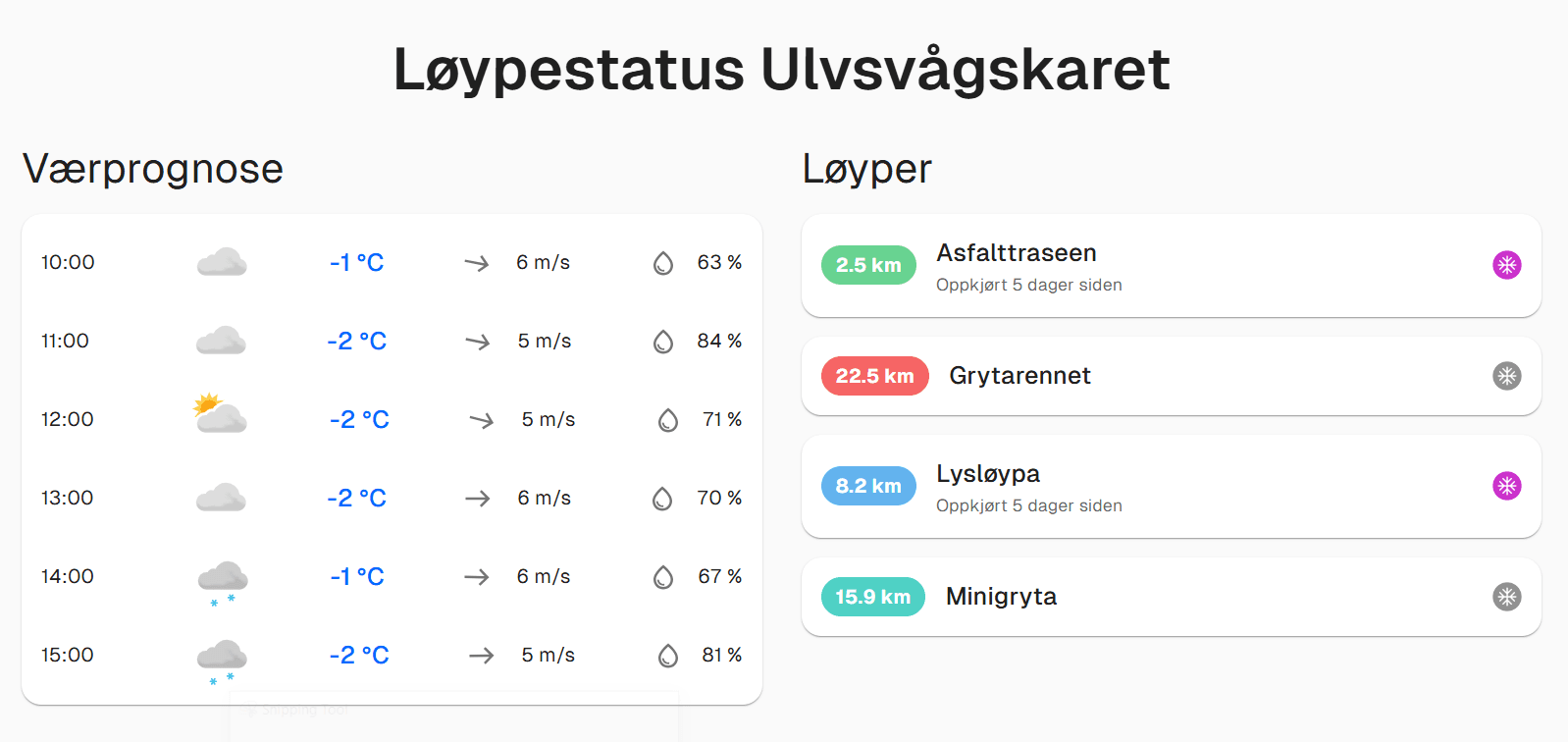
You can also show status for all routes/trails. (See image below)
https://www.loyper.net/status?location=ulvsvaagskaretHere you replace the name of the destination.
Contact us for customized user versions.
Click to enlarge
Custom design
Click to enlarge
Stikk UT!
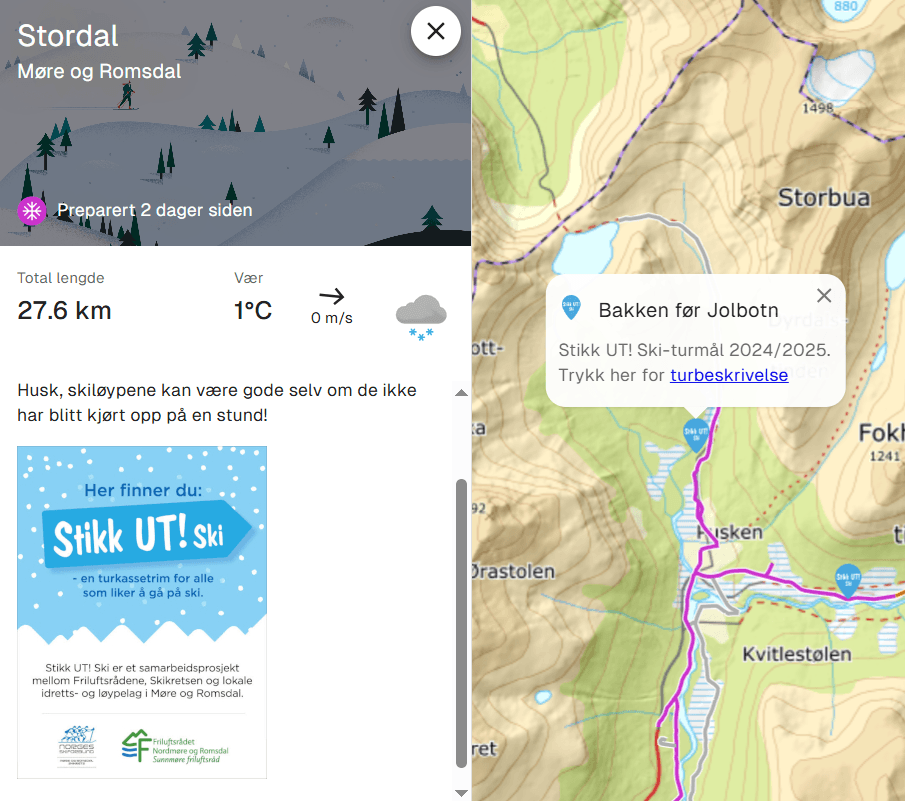
Here we show a custom solution for Stikk UT!
We've added Stikk UT-icon with a direct link to Stikk UT's own destination page on the web.
A good example of cross-platform collaboration.
Click to enlarge
Logbook
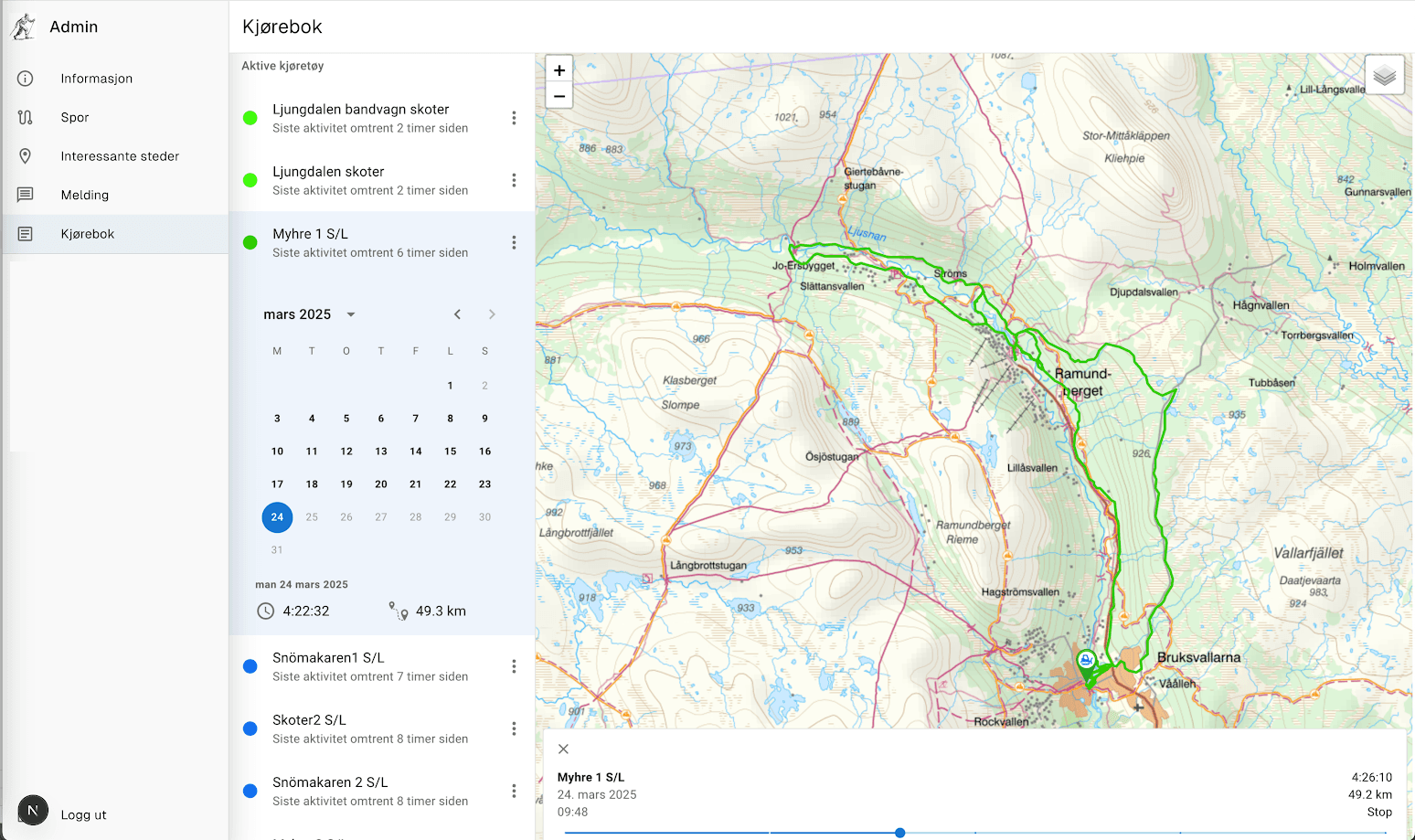
Here we show a Logbook.
The logbook shows what kilometers and hours the machine has operated during the season.
Reports can be retrieved at any time. A clear calendar provides easy-to-understand information.
This solution comes with an annual subscription at a very low price.
As a user at Loipen.net you get:
- Display of groomed ski trails.
- Works equally well on PC as smartphone.
- Easy to use - ad-free - built-in trip planner.
- A free and inclusive solution - everyone gets access!
Administrator solution:
- You can add your own text on the page.
- You can add your own POIs and add text and explanations.
- You can add your own routes.
- You can update the routes - set your own 'timestamp' on them.
- You can close/open routes - close trails over water with unsafe ice or reindeer on the trail etc.
All updating and changing of trail geometry is of course included in the subscription price.
Loipen.net operates over 700 GPS units in Norway and Sweden.